Policies and Access Control
Introduction
Access is given to protected assets by policies, created in the XMS, that specifies the following five things: Who? What? Where? How? When?
The types of policies can be categorized by the mapping from types of sources to types of destinations.
From user group to protected assets
This is the most typical kind of policy which gives a group of users access to assets behind XoT-Locks that match the specified asset type, group and location.
From protected assets to protected assets
This is sometimes referred to as a machine-to-machine or M2M policy, as this means that the XoT-Locks that match the specification for the policy source are given the capability of acting as clients in communication with the targets of the policy.
With this type of policy, assets from behind XoT-Locks can be given access to other assets or subnets without running any clients themselves. The XoT-Locks specified in the Source section will establish encrypted tunnels to the target XoT-Locks allowing secure communication between different protected assets.
By default these tunnels are encrypted, but for M2M policies this can be changed per policy. See Encrypted (tunnel) under the How section below.
From protected assets to unprotected assets
This type of policy will allow traffic from assets protected by XoT-Locks to whatever is specified in the policy. This can be set for specific IPs or subnets, allow access to neighboring assets (assets on the subnet on the outside of the XoT-Lock), or allow unrestricted outgoing traffic across the XoT-Lock.
From unprotected assets to protected assets
With this type of policy, access is given to sources not protected by XoT Technology to assets that are.
Creating Policies
Once you have admin access to XMS, click Create in the Policies section of the main menu. This will take you to the policy creation screen.
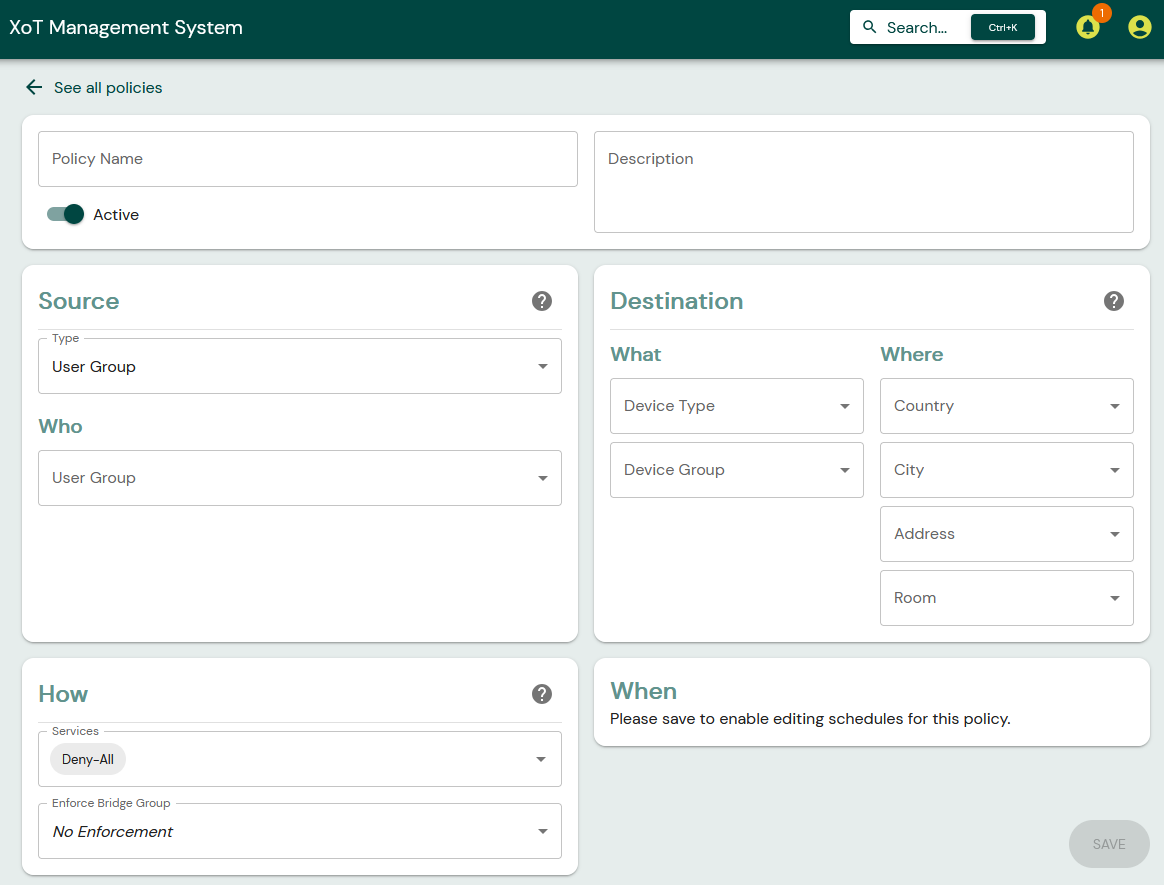
From here, you can specify the details of the policy.
First, you should give your new policy a name and optionally a description.

Source
This section specifies who is to be given access by the policy?
There are three different types of policy sources.
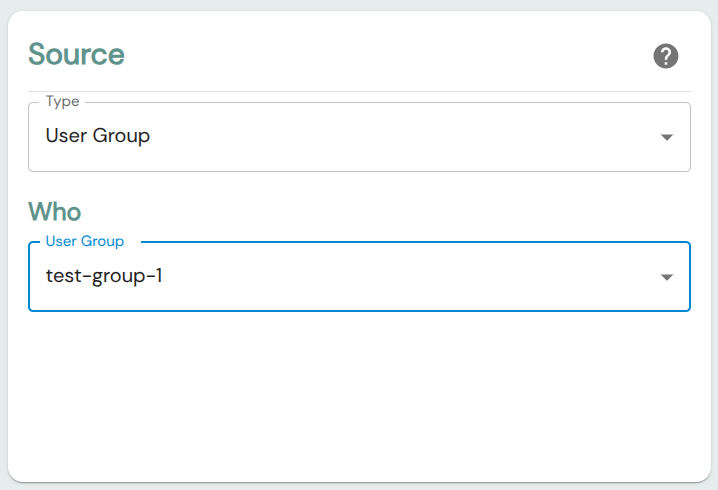
User Group
If Type is set to User Group, then the policy will apply to members of the group.
Protected Asset
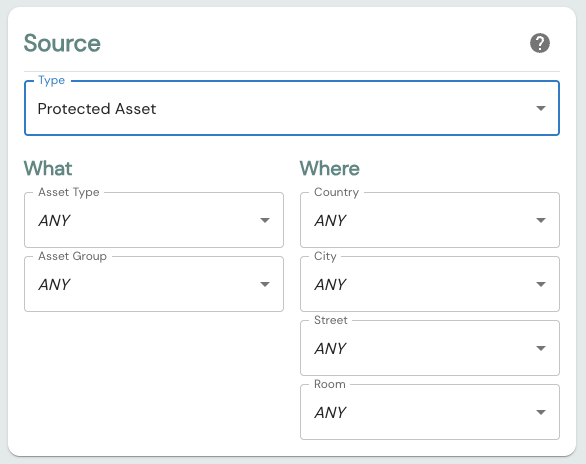
If Protected Asset is selected as Type then the policy will apply to XoT-Locks matching the Asset Type, Group and Location settings.
Unprotected Asset
If Unprotected Asset is selected as source Type, then the policy grants access to sources that are not protected by XoT Technology.
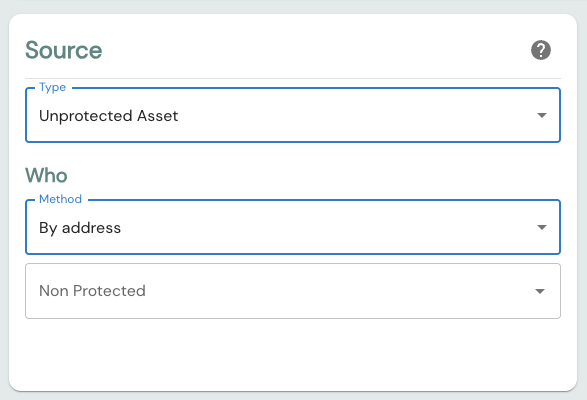
A Method selector controls how the unprotected source is specified:
- By address — Specify the source as one or more IP addresses or subnets in the Who field, or choose a special case such as Anyone or Neighbors (assets on the subnet outside the XoT-Lock). This is the original behavior.
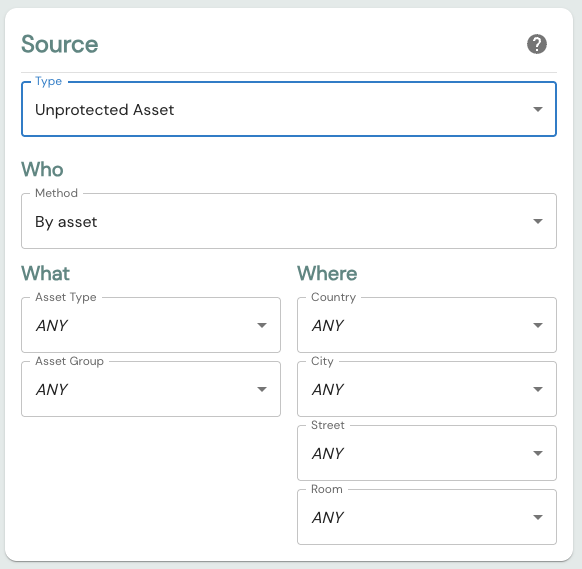
- By asset — Select unprotected assets by classification and location, the same way protected assets are matched. The policy then applies to whichever unprotected assets match those criteria, and stays current as the asset inventory changes.
With the By address method, the source is one or more typed addresses:
With the By asset method, the source is matched from the asset inventory by type, group, and location:
The same Method selector is available when the Destination of a policy is an unprotected asset.
Destination
The Destination section specifies the types and locations to which the policy will allow communication. As with the Source, the destination can be a Protected Asset or an Unprotected Asset.
For a Protected Asset destination, specify the asset type, group, and location of the assets protected by XoT-Locks.
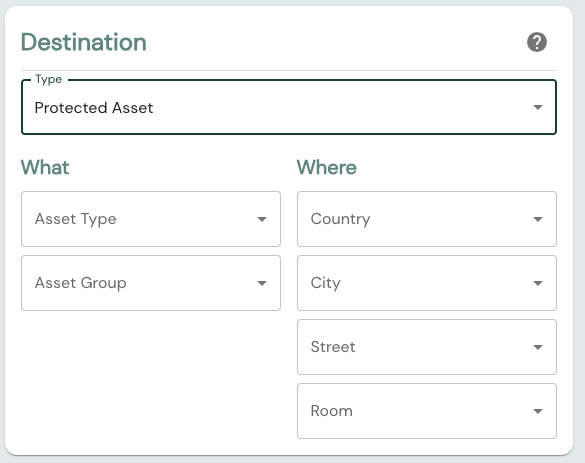
For an Unprotected Asset destination, the same Method selector described under Unprotected Asset above applies. Use By address to target external IPs, subnets, or a special case such as unrestricted outgoing communication, or By asset to match unprotected assets by type, group, and location.
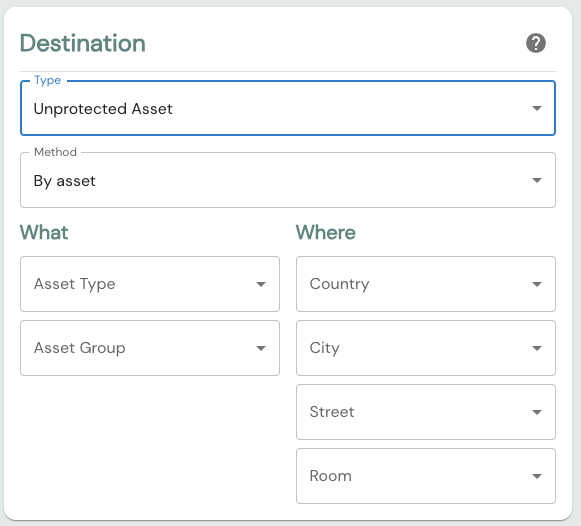
How
How should authenticated clients be allowed to communicate? What protocols and ports can be accessed?
By default, the policy will be set to Deny-All and will not provide any access.
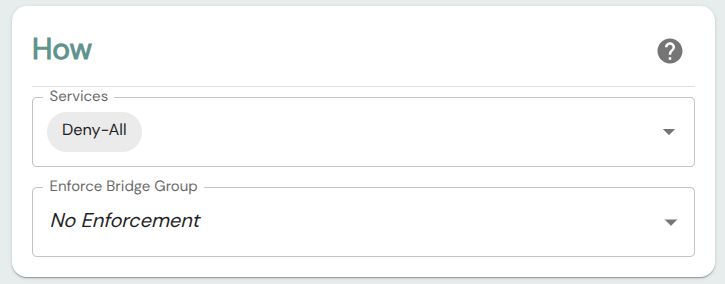
For the policy to grant access, you must add rules and services in the Service field.
For instructions on how to create firewall rules and services, see this section below.
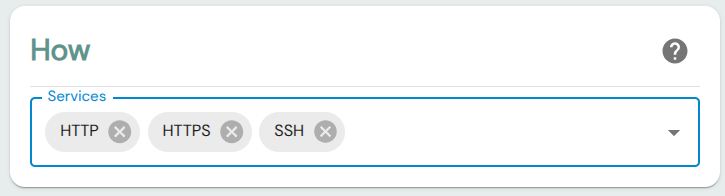
If the Source of the policy is a User Group, then an additional field called Enforce Bridge Group can also be set in this section. If a Bridge Group is set here, then this will place a requirement for policy that it will only apply to communication that happens via that Bridge Group.
Encrypted (tunnel)
For machine-to-machine policies — where both the Source and the Destination are protected assets — an Encrypted (tunnel) toggle is available in this section.
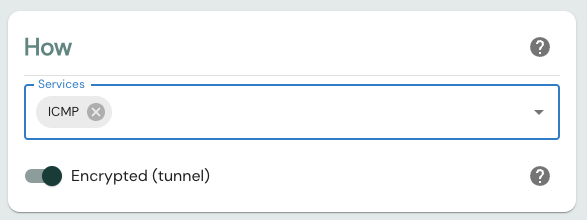
It controls how traffic between the protected assets is carried:
- On (default) — Traffic between the source and target assets is tunneled through an encrypted WireGuard connection established between their XoT-Locks. This is the standard M2M behavior.
- Off — Traffic flows directly over the underlying network between the XoT-Locks, with no tunnel. Each XoT-Lock still enforces the policy's firewall rules, but matches traffic on source and destination IP address only. No access ticket is issued for an unencrypted M2M rule.
Only turn encryption off when both assets share the same network and encryption is either handled elsewhere or not required.
The toggle is shown only for protected-asset-to-protected-asset policies, since a tunnel requires an XoT-Lock at both ends. It is not available when the destination is an unprotected asset.
In the policy list, M2M policies with encryption turned off are marked with a warning icon and an Unencrypted (no tunnel) label.
When should this access be granted?
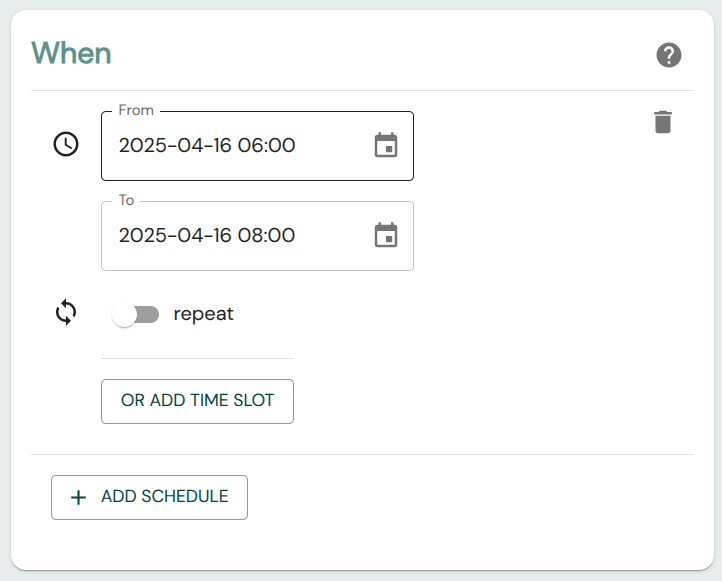
It is also possible to only have the policy be active at certain times. The scheduling function allows a great deal of flexibility in this area.
Due to current limitations scheduling can only be added to existing policies, so if you are creating a new policy that needs to have a schedule, save the policy first by clicking Save in the bottom right and then the scheduling function should be available.
Firewall Rules & Services
As we've seen, policies can restrict what type of traffic they allow. This is done by assigning firewall rules or services to the policy.
A firewall service is either a portless protocol, like ICMP, or a combination of protocol and port range.
A firewall rule is simply a grouping of services. For situations where you want to assign the same combinations of protocols and port ranges for many policies, it may be easier to create a rule describing this group of services and simply assign that in the policy. Assigning a firewall rule to a policy is equivalent to assigning all the services contained within it.
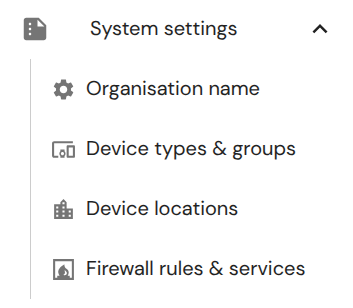
To create a firewall rule or service, navigate to Firewall rules & services in the main menu.
Using the Policy Graph
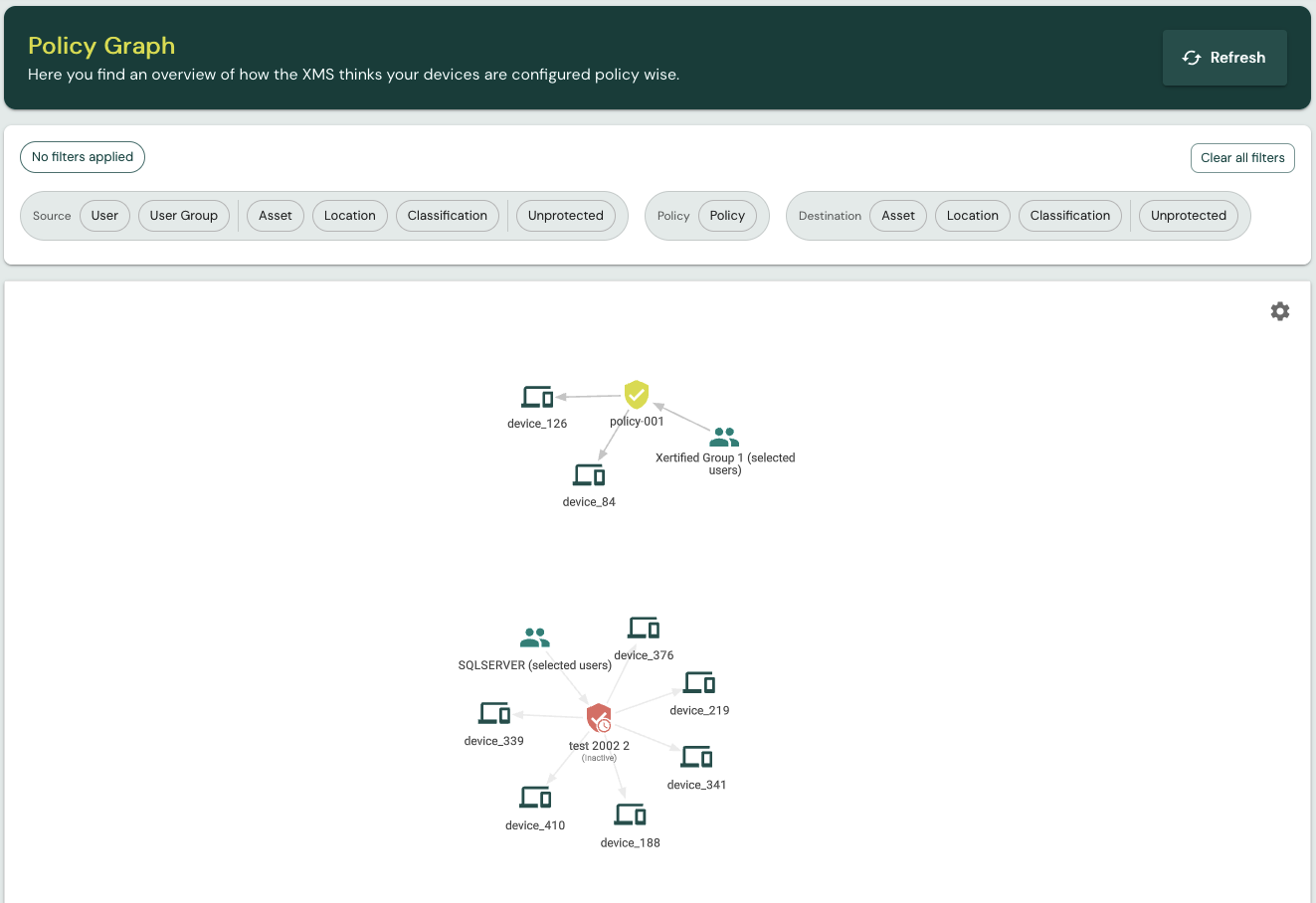
The Policy Graph provides a visual representation of how users, user groups, policies, and assets are connected. Navigate to Policies → Graph in the main menu to access it.
Understanding the Graph
The graph displays access paths as connected nodes:
- Users and User Groups represent sources for user-based policies
- Assets can be both sources and destinations. This includes unprotected assets selected with the By asset method, which appear here alongside protected assets.
- Other nodes represent entries that are not asset records — typed IP addresses, subnets, or special cases like "Anyone" or "Neighbors"
- Policies connect sources to destinations
If a source is connected to a destination through a policy, access has been configured. The graph shows both active and inactive policies. Inactive policies do not currently grant access. Scheduled policies only grant access during their configured time windows.
Filtering the Graph
Use the search bar at the top to filter what is displayed. You can filter by:
- Source – Users, User Groups, Assets, or Other
- Policy – Specific policy names
- Destination – Assets or Other

Adjusting the View
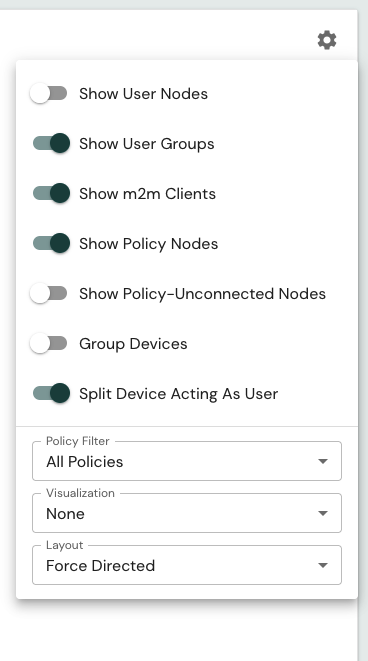
The graph includes controls to adjust node visibility and how nodes are organized. Use these to simplify the view or focus on specific aspects of your policy configuration.