Using the XoT-Desktop Client
Related Articles and Resources
This guide assumed you have the XoT-Desktop software installed and configured.
- If you don't have the XoT-Desktop application on your device, please contact your IT department or party responsible for supplying software to your device.
- If your organization does not have the XoT-Desktop software contact your Xertified representative or create a ticket here.
- If you have the XoT-Desktop software available and are an administrator on your device, you may consult the installation guide.
- If you have the XoT-Desktop app installed but it is not configured for any user, see the configuration guide.
What is XoT Client?
XoT-Desktop is a desktop application that allows you to safely connect to remote services and devices. Think of it as a secure gateway that lets you access company resources, remote computers, or web services while maintaining strict security controls.
Most importantly, XoT Client is designed to work automatically in the background. Once configured, it provides seamless access to protected networks and devices without requiring constant user interaction.
Getting Started
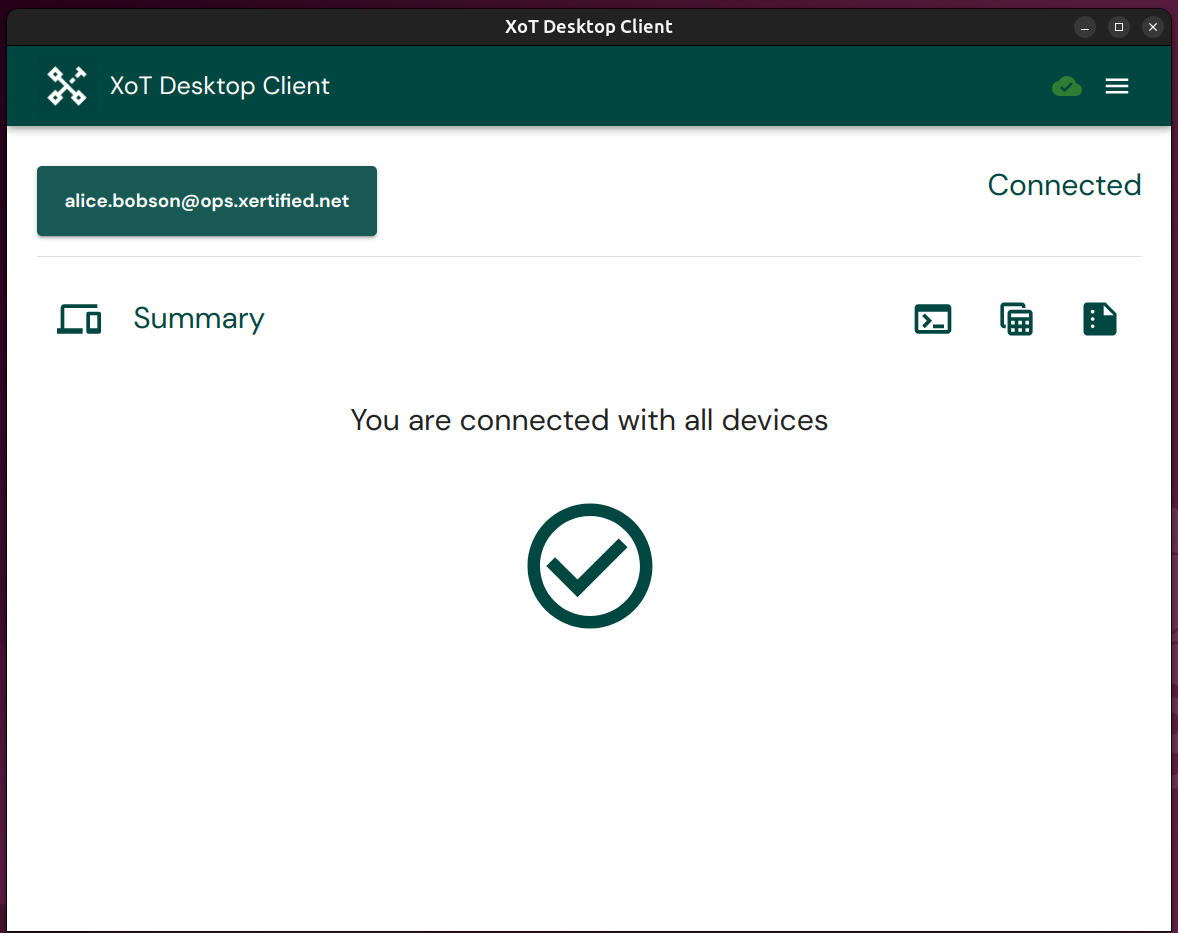
When you first open XoT Client, you'll be presented with a summary of you connection status.
Selecting Your Security Token
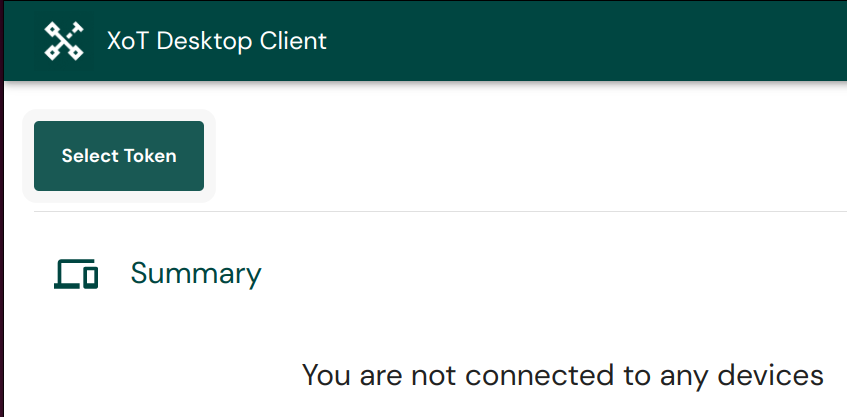
If the green button in the top left does not specify your username but instead says Select Token, then you must first select your security token before you can connect to any services:
-
If you have a YubiKey or similar device, insert it into your computer
-
Look for the "Select Token" button in the interface
-
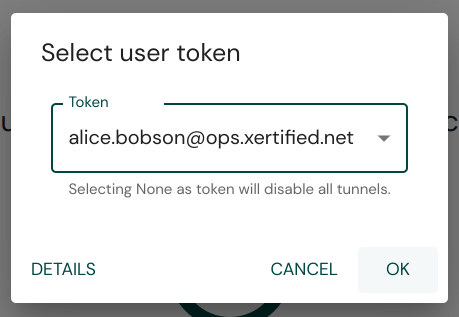
Click it to open the token selection dialog
-
Choose your security token from the dropdown list
-
Click OK to confirm your selection
Your security token is always required for the application to be able to establish connections to protected networks and devices. The token may be a software or hardware token depending on how your organization has set things up.
Accessing Common Services
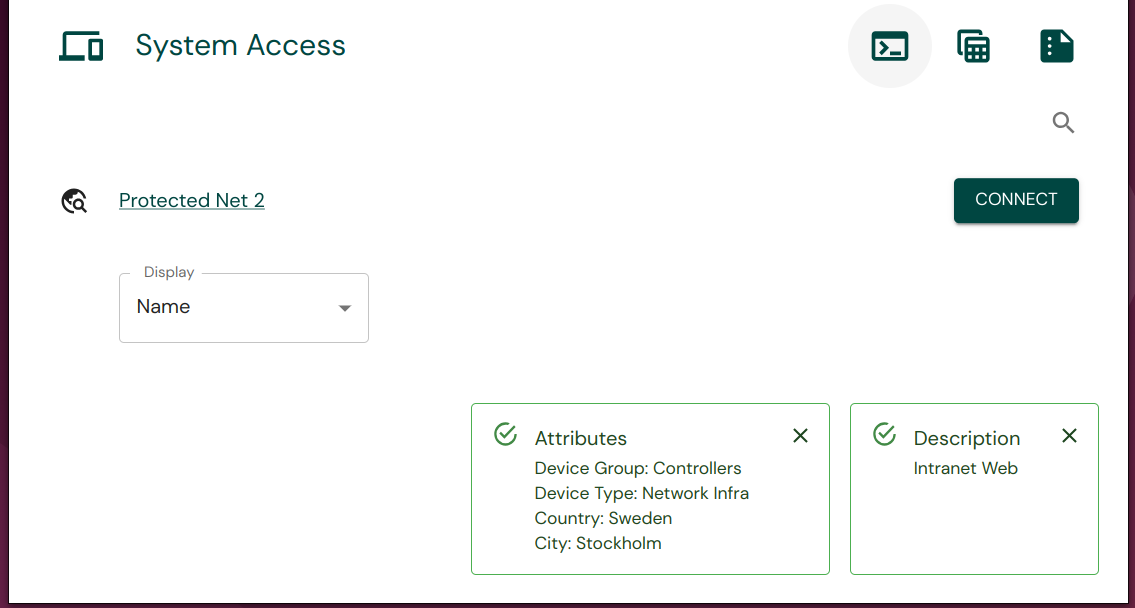
The System Access views provides a way of quickly accessing the commonly used services that are available on connected networks or devices. This works by providing clickable links that your operating system can automatically open with a suitable application. They can be things like websites, remote desktops, SSH or whatever your system administrator has made available.
Using the XoT-Desktop Client
Once you are logged in XoT-Desktop will establish connections to all the protected devices and networks that your user has been given access to. You can now access them using whatever applications you normally would.
If you would like to know more about the state of your current connections or how to debug failing connections, then you can continue with the more in depth sections below. For most users this is not necessary however and the XoT-Desktop client is happy to make everything available in the background without any user action.
The XoT-Desktop Interface
Device Connections
In the Device Connections page you will see a listing of connections your client has access to via your user token.
From here you can see the current connection status, whether the connection uses an XoT-Bridge, has redundancy and a manual toggle to manually enable or disable individual connections.
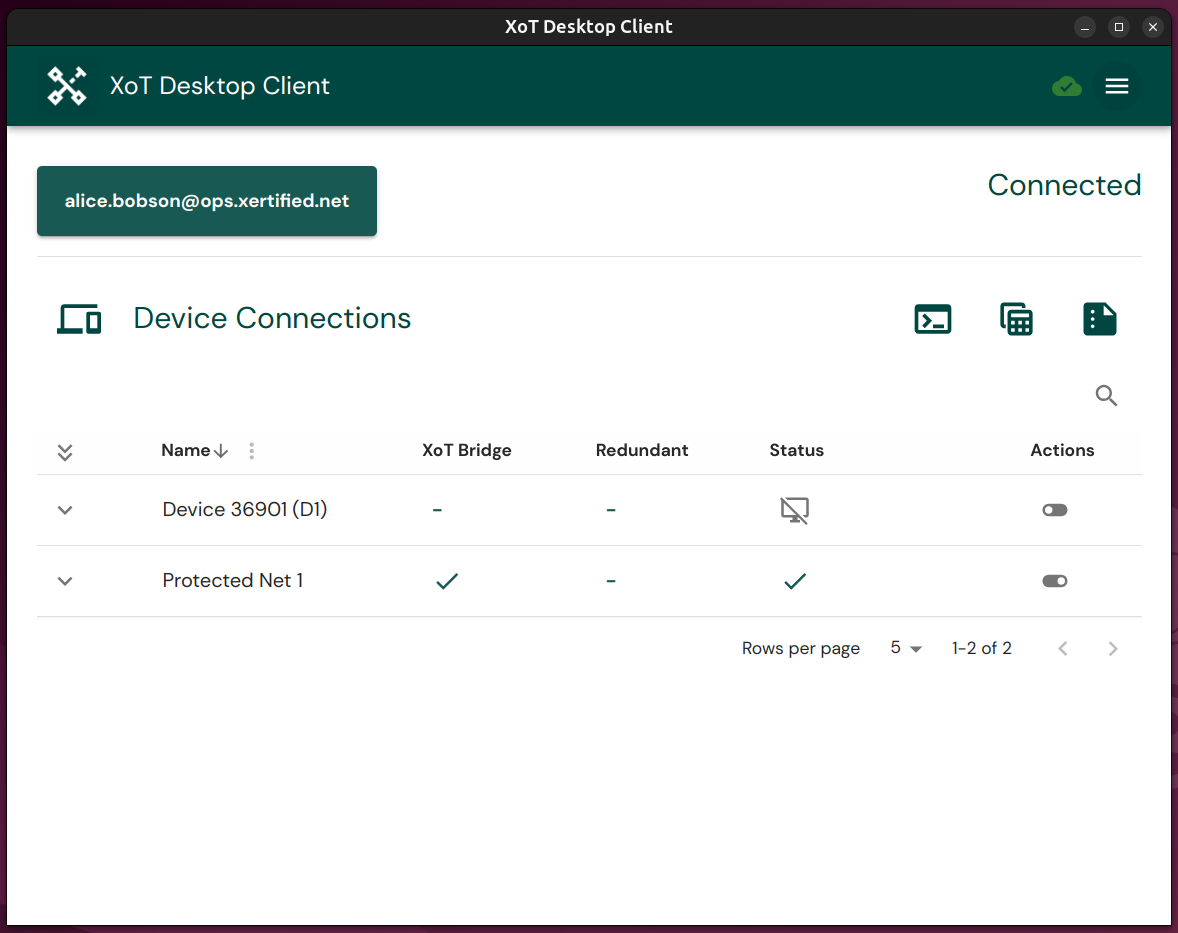
On the lest side of every device connection you can also see an arrow that can expand the connection to provide more information about it:
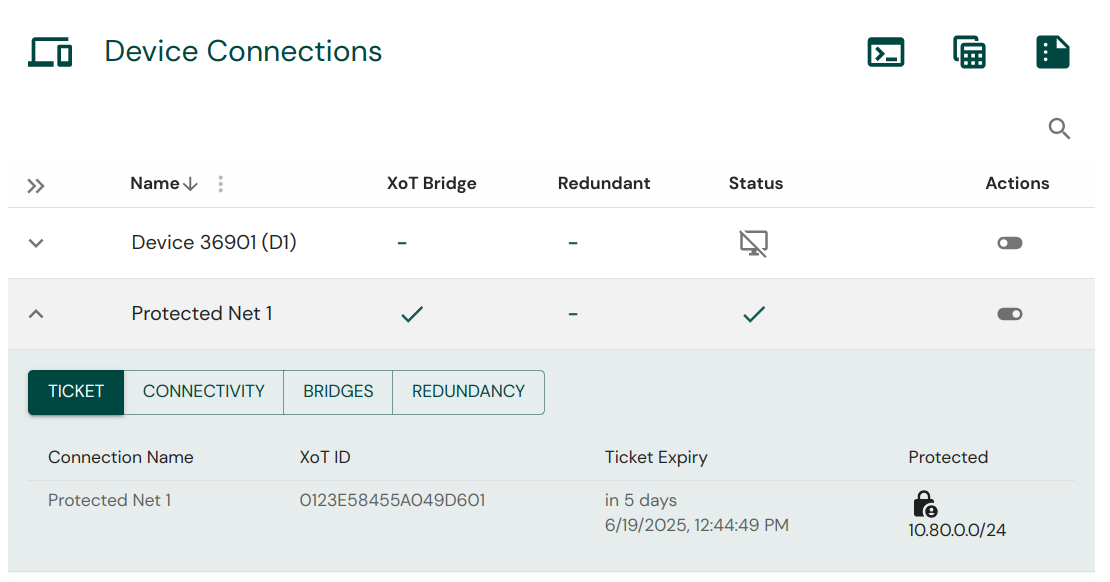
- Ticket: Shows more information about what your client has been given access to, how long does the current ticket last, and what is the IP of the protected device or subnet.
- Connectivity: Shows connection related information useful for validating or debugging connections.
- Bridge: If the connection to the protected device or network is going through an XoT-Bridge, you can see which bridge is being used here.
- Redundancy: Shows the level of redundancy for the connection.
The Status Sidebar
The XoT-Desktop client also provides a detailed status sidebar that shows you the current status of your client.
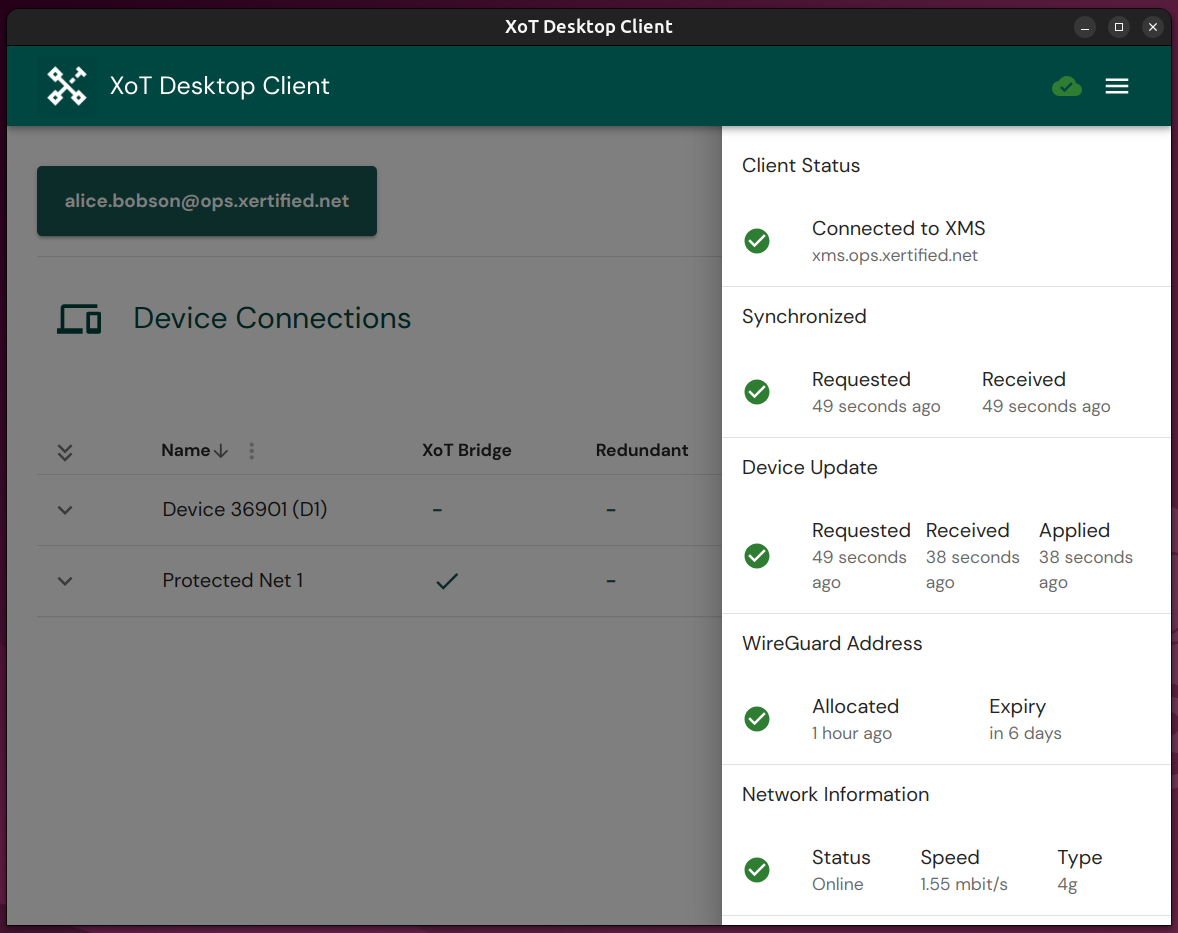
If something is not working this view can be useful to see exactly what is going wrong with your connections.