Smart card configuration
This guide helps you issue smart cards when using macOS or Linux. Clients' smart card users can use any OS.
Prerequisites
For Smart card issuer on Linux/macOS
- OpenSSL (https://www.openssl-library.org/source/)
- p11tool (https://github.com/OpenSC/libp11)
- Net iD Client version 1.1.3.37+ by PointSharp.
- Smart card, E.g. IDPrime .NET by Gemalto.
- Smart card reader.
- Bash terminal.
1. Prepare a configuration.zip with hardware token support
- Go to the "Users" menu tab and the "Create Client configuration"-page in the XMS.
- Create a configuration
- "Hardware key" selected.
- "Common name" must be the email of the user and the CN name for the user.
- A password must be set.
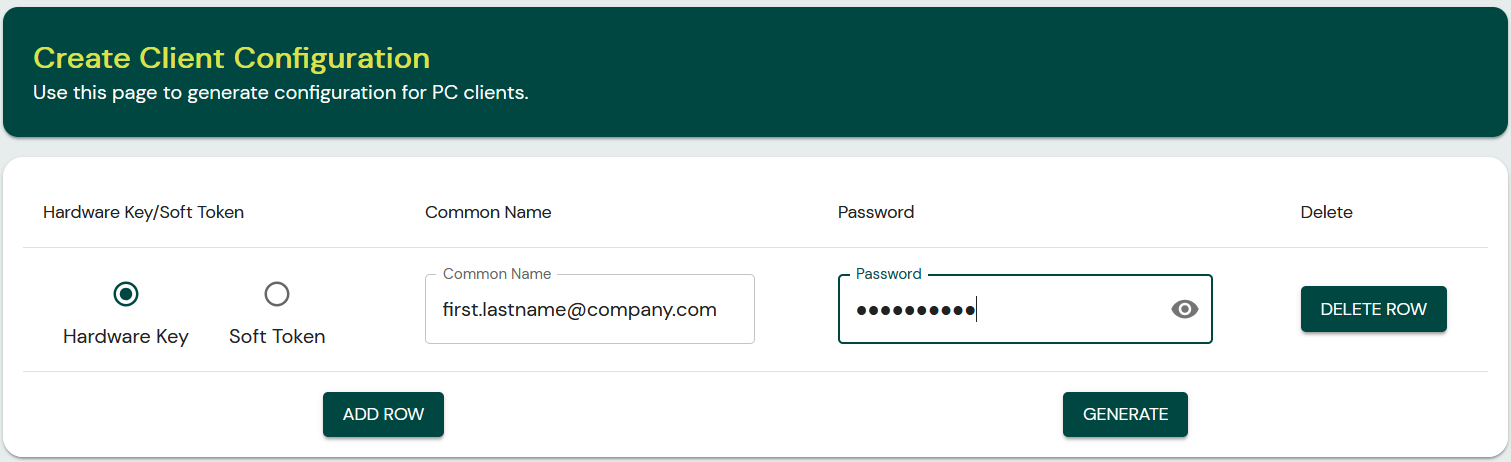
- Press
GENERATEto download the configuration .zip-file. - Unzip the configuration .zip-file.
- Unzip the user_config_first.lastname@company.com.zip file using the password.
2. Push certificate files to the smart card
- Find out the smart card details.
$ p11tool --provider=/usr/lib/netid/libnetid.so --list-token-urls
- Set the basic slot to a variable
$ export pkcs11url="pkcs11:model=IDPrime%20.NET;manufacturer=Gemalto;serial=283EE00B11XXXXXX;token=IDPrime%20.NET%20%28basic%29"
- Upload the user_cert and user_key to the smart card
$ p11tool --provider=/usr/lib/netid/libnetid.so \
               --load-privkey user_key.pem --write --login \
               --label xotuser $pkcs11url

$ p11tool --provider=/usr/lib/netid/libnetid.so \
               --load-certificate user_cert.pem --write --login \
               --label xotuser $pkcs11url
3. Verify a smart card issued with certificates
Prerequisites
The XoT-Desktop client must be installed with the NetiD Client or the OpenSC dependencies.
Verify smart card authentication
- Start the XoT Client Config tool.
- Tick the Setup global config (privileged user rights needed) and Import root certificate (if needed).
- Review the global config token setting:
{ "client": { "token": "<setting>",. The<setting>has to match theNetIdoropenscinstalled dependency. - Press
Apply. If asked to restart the daemon-service and xot client, pressYes. - Open the XoT-Desktop client and insert the smart card. The token shall now become available. When selected, the authentication should succeed.