XoT Client Config
The purpose of the XoT Client Config tool is to make it easy for the user to set up the XoT-Desktop client configuration on Microsoft Windows.
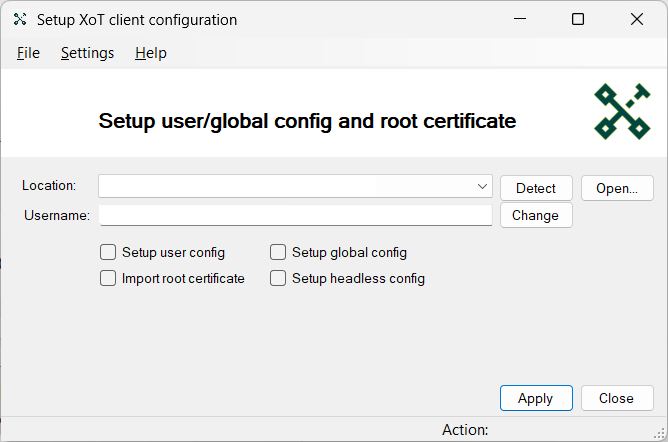
1. Location of the XoT Client Config
- By default, the XoT Client Config tool can be located at:
XoT-Desktop client\install\client-config.exe - By default, the XoT Client Config tool is available via the start menu as "XoT Client Config".
2. Starting the XoT Client Config
- The XoT Client Config tool starts by default when the XoT-Desktop client starts, if there are no errors in the configuration set for the XoT-Desktop client.
- To start the XoT Client Config tool manually, use the locations in 1.
3. Select options
| Selector | Description |
|---|---|
| Location | Specifies what configuration .zip file that is to be used for the XoT-Desktop client. - Press Detect to scan the %USERPROFILE%\Downloads folder for configuration .zip-files. - Press Open to browse for configuration .zip-file. Can be set to any folder that the computer can reach (local, shared network folder, or URL). |
| Username | Accepts only selectable users listed when Change has been pressed. |
| Setup user config | Tick to set the user configuration (./xot_settings.json, ./cert/user_cert.pem and ./cert/user_key.pem in %LOCALAPPDATA%\Xertified). Leave unticked to skip. |
| Setup global config | Tick to set the global configuration (./xot_settings.json, ./cert/user_cert.pem and ./cert/user_key.pem in %PROGRAMDATA%\Xertified\Config), privileges user rights needed. Leave unticked to skip. . |
| Import root certificate | Tick will import the XMS CA root certificate to the "Current User" or (when running as privileged user) to the "Local Machine" keystore. Leave unticked to skip. |
| Setup headless | Tick to set the user configuration for the headless client. Leave unticked to skip. |
3.1 Selections installed XoT-Desktop client via a company-owned AppStore
When XoT-Desktop client is installed from a company AppStore. The following configuration problem screen will show the first time you start the application.
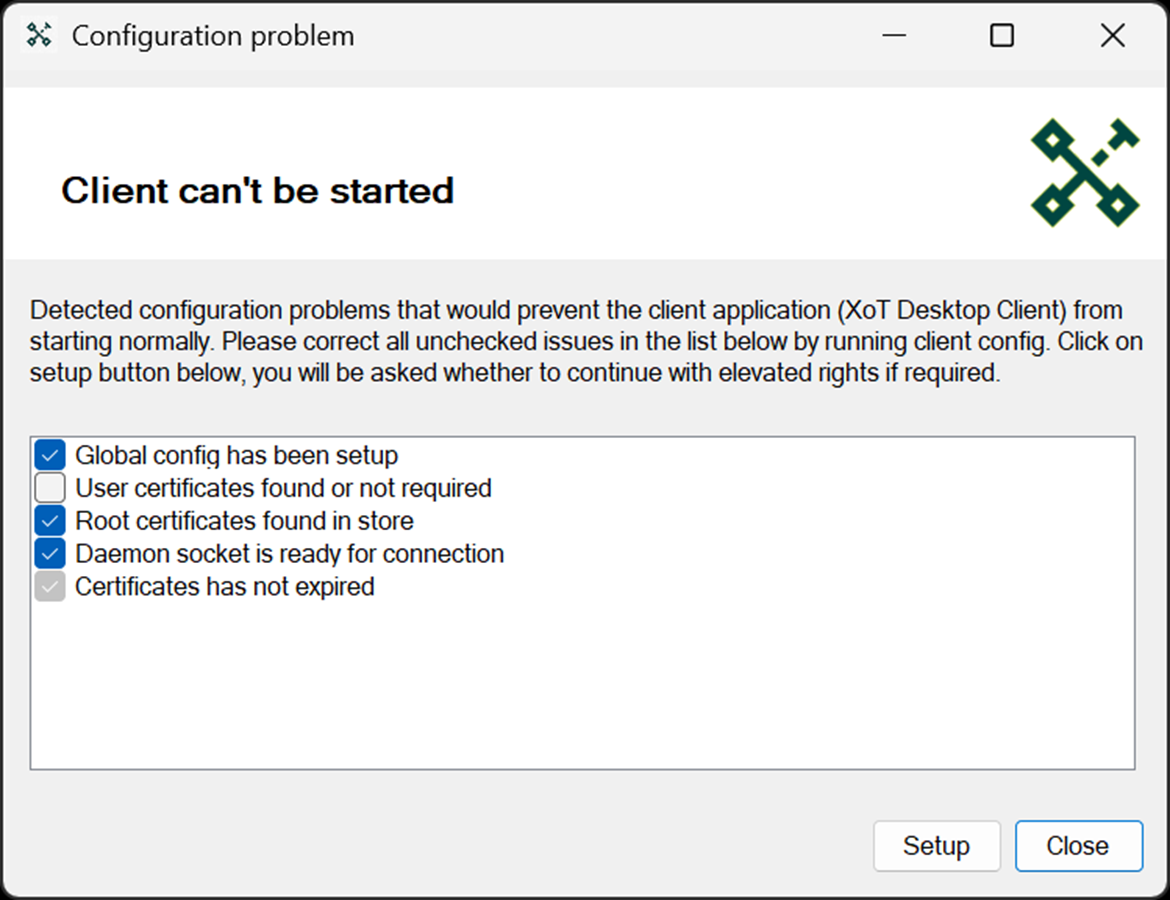
- Press
Setupto open the XoT Client Config tool. - Press
Opento browse to the configuration .zip-file. Select it and pressOpen. - Tick the
Setup user configcheckbox. Leave all other checkboxes unticked. - Press
Apply. Insert the password you received in the password prompt. PressOk.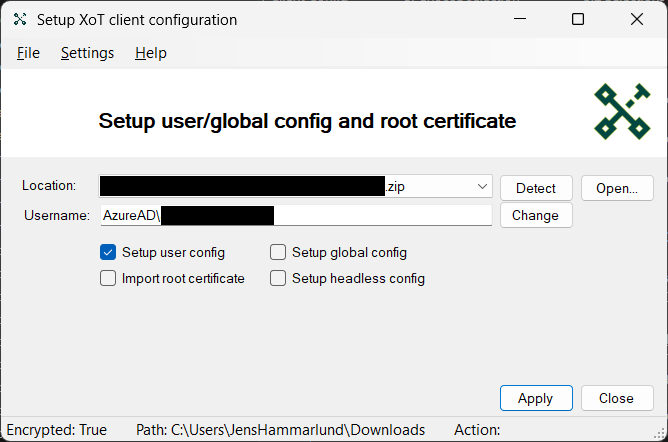
- When asked to restart the daemon-service and the client application, press
Yes. - The XoT-Desktop client has now been set up successfully.
4. Apply configuration
When all selections have been made, press Apply to set the configuration. Some actions may require restarting the XoT-Desktop client and the daemon service. If so, the user will be prompted to do this by pressing Yes. The XoT-Desktop client now has the new configuration.